
Key takeaways
- Highlight a sentence in the PDF first: text that selects means a digital file that converts cleanly, while nothing selecting means a scan that needs OCR.
- Text-based converters recover words and paragraph flow but simplify columns, detailed tables and exact fonts, so budget a minute for reformatting after download.
- Bad conversions usually trace to a scan without a text layer, a password-protected file, or a design-heavy layout built from text boxes and columns.
- Retyping a ten-page contract takes about an hour, whereas reapplying headings to a converted copy takes about two minutes, so conversion almost always wins.
Converting a PDF to Word works well when the PDF contains real text, and poorly when it does not. That single fact explains almost every good and bad conversion result, so it is worth thirty seconds to understand before you upload anything.
The 5 second test: is your PDF digital or scanned?
Open your PDF and try to highlight a sentence with your cursor. If the text highlights, you have a digital PDF, which stores its words as real, selectable characters. These convert cleanly. If nothing highlights and the page behaves like a photo, you have a scanned PDF. A scan is just a picture of a page, so a converter has no text to pull out, and you will need OCR first (more on that in our OCR guide).
How to convert a digital PDF to Word
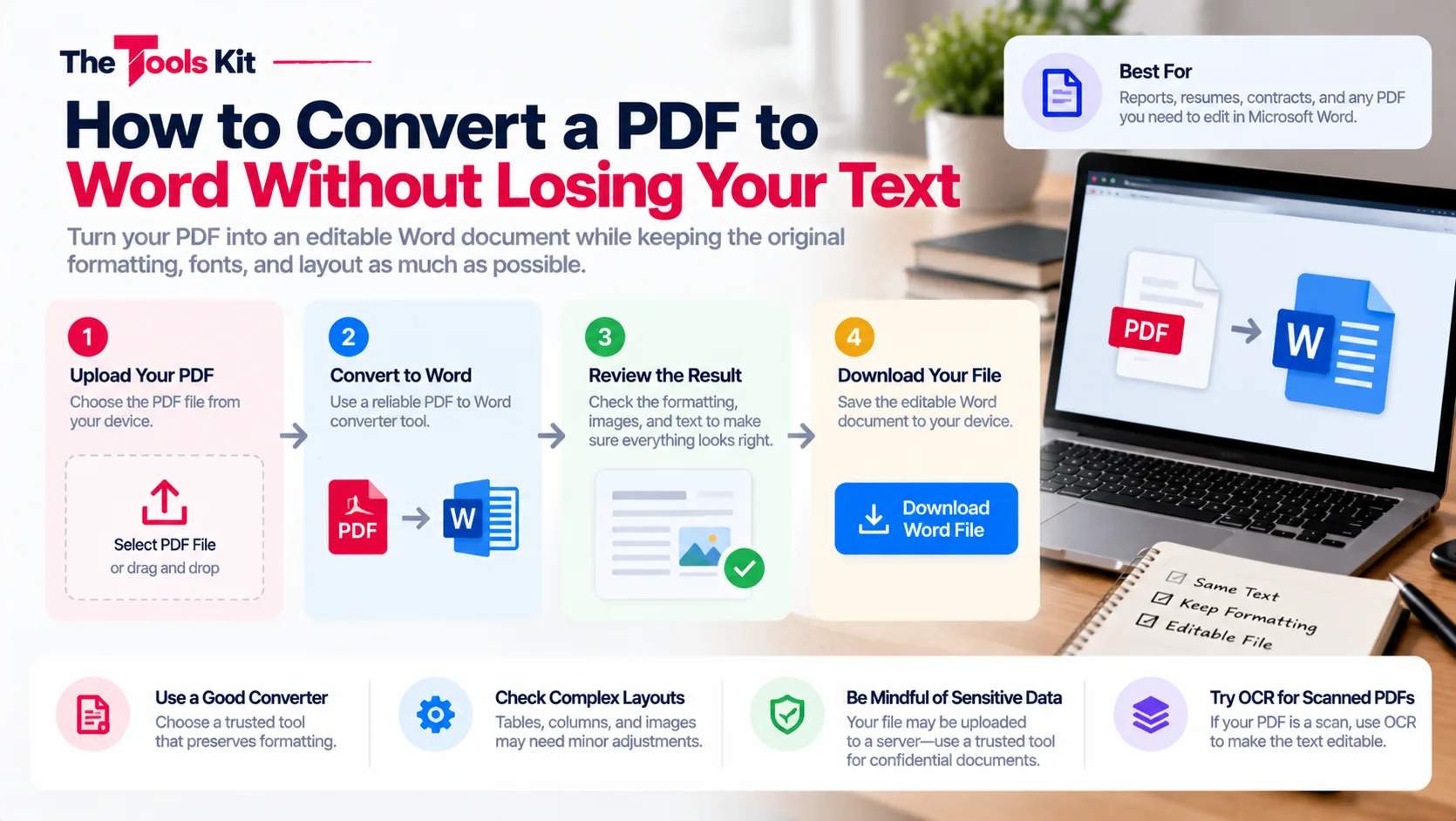
- Open the free PDF to Word tool.
- Upload your PDF. No account or signup is needed.
- Run the conversion and download the .docx file.
- Open it in Microsoft Word, Google Docs, or LibreOffice and edit freely.
The tool pulls the readable text out of your PDF so you do not have to retype anything. That is the point of converting: your words come across intact and editable.
What about formatting?
Here is the honest part most guides skip. Text based converters recover your words and basic paragraph flow, not the visual design of the page. Complex layouts, columns, detailed tables, and exact fonts are handled differently by every converter, and with a text focused tool they are simplified rather than copied. Expect to spend a minute reapplying headings or adjusting a table after you download.
That trade is usually worth it. Retyping a ten page contract takes an hour. Reformatting its headings takes two minutes.
Why did my PDF convert badly?
The usual causes, in order of likelihood: the PDF was a scan with no text layer, the PDF was password protected so the converter could not read it, or the document leaned heavily on design elements like text boxes and multi column layouts. The fix for the first is OCR, the fix for the second is removing the password before uploading, and the fix for the third is accepting a plainer result and reformatting in Word.
The bottom line
Run the highlight test first. If your text selects, convert with confidence and budget a minute for cleanup. If it does not select, deal with the scan before you convert, because no text based converter can read a picture.