
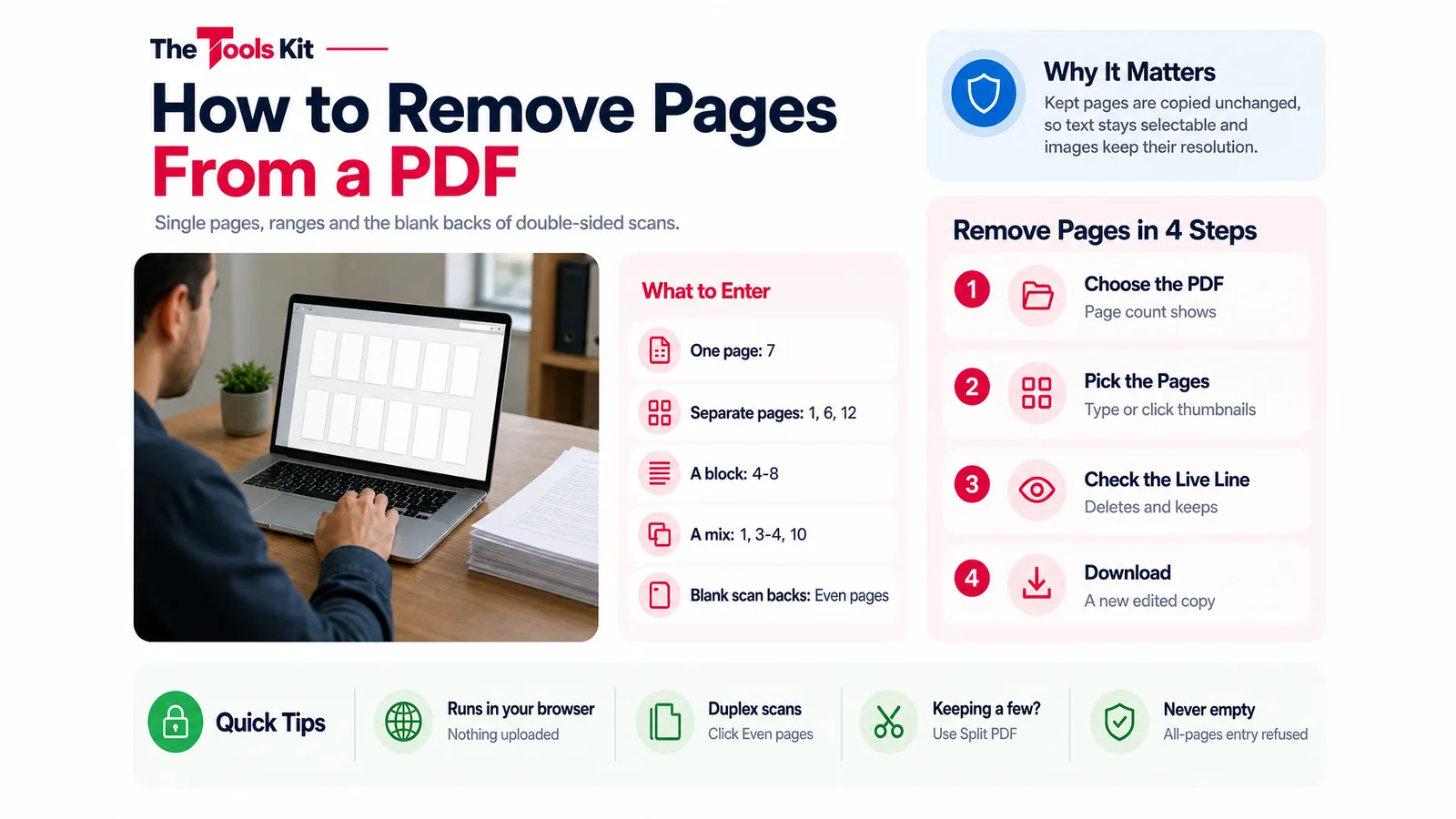
Key takeaways
- Type pages as numbers and ranges separated by commas, such as 2, 4-5, 9, or click thumbnails; the live line confirms how many pages go and stay.
- For a duplex scan of one-sided sheets, the Even pages button selects the blank backs in one click; untick any page that actually has content.
- When you are keeping only a few pages from a long PDF, enter those pages in Split PDF instead of listing every page to delete.
- Kept pages are copied unchanged, so quality does not drop, but bookmarks and the title property do not come across to the new file.
To remove pages from a PDF, open it in a page-deletion tool, enter the page numbers you want gone (for example 2, 4-5, 9), and save the result as a new file. On thetoolskit.co the Delete PDF Pages tool does this in your browser: the PDF is never uploaded, there is no account, and the pages you keep are copied across unchanged, so their text stays selectable and images keep their resolution. The rest of this guide covers the three ways to pick pages, the blank-backs trick for scans, when a different tool is quicker, and the offline options on Mac and Windows.
Remove pages in four steps
- Choose the PDF. The page count appears under the file name, and a thumbnail of each page renders below the page field.
- Pick the pages to delete. Type them as numbers and ranges separated by commas (2, 4-5, 9), or click the thumbnails; a clicked page is marked with a cross and its number is added to the field.
- Read the live line under the field. It says how many pages the entry deletes and how many it keeps, for example "Deletes 3 pages and keeps 9 of 12."
- Click Delete Pages. A new file downloads with "-edited" added to the original name. The file on your computer is not changed.
The tool checks your entry against the real page count. Numbers past the last page are ignored, an entry that matches no page asks you for a valid range, and an entry that would remove every page is refused, so you never get an empty file.

Three ways to say which pages go
| What you want gone | What to enter | Example on a 12-page PDF |
|---|---|---|
| One page | Its number | 7 |
| Several separate pages | Numbers with commas | 1, 6, 12 |
| A block of pages | A range with a hyphen | 4-8 |
| A mix | Numbers and ranges together | 1, 3-4, 10 |
| Every even page | Click Even pages | 2, 4, 6, 8, 10, 12 |
| Every odd page | Click Odd pages | 1, 3, 5, 7, 9, 11 |
Order inside the field does not matter, duplicates are merged, and a reversed range such as 8-4 is read as 4-8. The pages you keep stay in their original order.
Thumbnails cover the first 300 pages. For longer documents, type the higher page numbers into the field; the field and the thumbnails always stay in sync.
Removing the blank backs of a double-sided scan
A scanner set to duplex scans both sides of every sheet, so a stack of one-sided letters comes out with a blank page after each real one. Those blanks are usually the even pages. Click Even pages, check that the live line says you are keeping half the document, and download.
The tool does not detect blank pages by itself. If a few sheets were printed on both sides, scroll the thumbnails and click those pages to take them out of the selection before you delete.
When another tool is quicker
Deleting is the right move when you are dropping a few pages from many. When you are keeping a few pages from many, typing the ones to delete gets long, and the opposite tool is faster.
- Keep pages 3 to 5 of a 40-page report: enter 3-5 in Split PDF instead of listing 37 pages to delete. Our guide to splitting a PDF and extracting specific pages covers that tool in detail.
- Delete some pages and also change the order: Organize PDF shows every page with arrows to move it and a cross to remove it, then saves the result in one pass.
- Remove pages from several PDFs and join what is left: delete from each file first, then combine them with Merge PDF.
What changes in the file, and what does not
The tool builds a new PDF and copies the pages you keep into it. It does not re-render them, so there is no quality loss and no watermark. A few things do not come across, because they belong to the document rather than to a page:
- Bookmarks (the outline panel some readers show beside the pages).
- Document properties such as the title field.
The new file holds only the kept pages, so it is often smaller than the original. It is not always much smaller: fonts and images that the kept pages share still come across in full. If the file is still too big for an upload limit, run it through Compress PDF next.
If the PDF will not open
The usual reason is a password. The tool cannot read an encrypted PDF and says so when you choose the file. If you can open the file yourself, save an unlocked copy first; our guide on removing a password from a PDF you can open shows how in a browser or in Preview. A damaged file gives the same message; re-download or re-export it from the program that made it.
The tool works on one PDF at a time.
Doing it without a website
If you would rather use what is already on your computer:
- Mac, Preview: open the PDF, choose View, then Thumbnails, select the pages in the sidebar, press Delete, then save. Preview edits the file in place, so duplicate it first if you want to keep the original.
- Windows, any browser or reader with Print: print the PDF to Microsoft Print to PDF and enter only the pages you want to keep in the Pages box. Printing produces a fresh PDF, so links inside the document and bookmarks do not survive, and the file can come out larger.
Both work offline. The browser tool is the same speed and keeps the pages exactly as they were, which matters for links, forms and file size.
Frequently asked questions
Choose the PDF in the Delete PDF Pages tool, type that page's number (for example 7) or click its thumbnail, and click Delete Pages. A new copy downloads with that page left out and every other page in its original order.
Yes. The Delete PDF Pages tool on thetoolskit.co edits the file inside your browser, so the PDF never leaves your device. There is no account, no watermark and no daily limit.
If the scanner scanned both sides of one-sided sheets, the blanks are usually the even pages. Click Even pages, untick any page that is not blank, and download. The tool does not find blank pages on its own.
No. The pages you keep are copied into the new PDF without being re-rendered, so text stays selectable and images keep their resolution. Bookmarks and the document title property are not carried over.