
Key takeaways
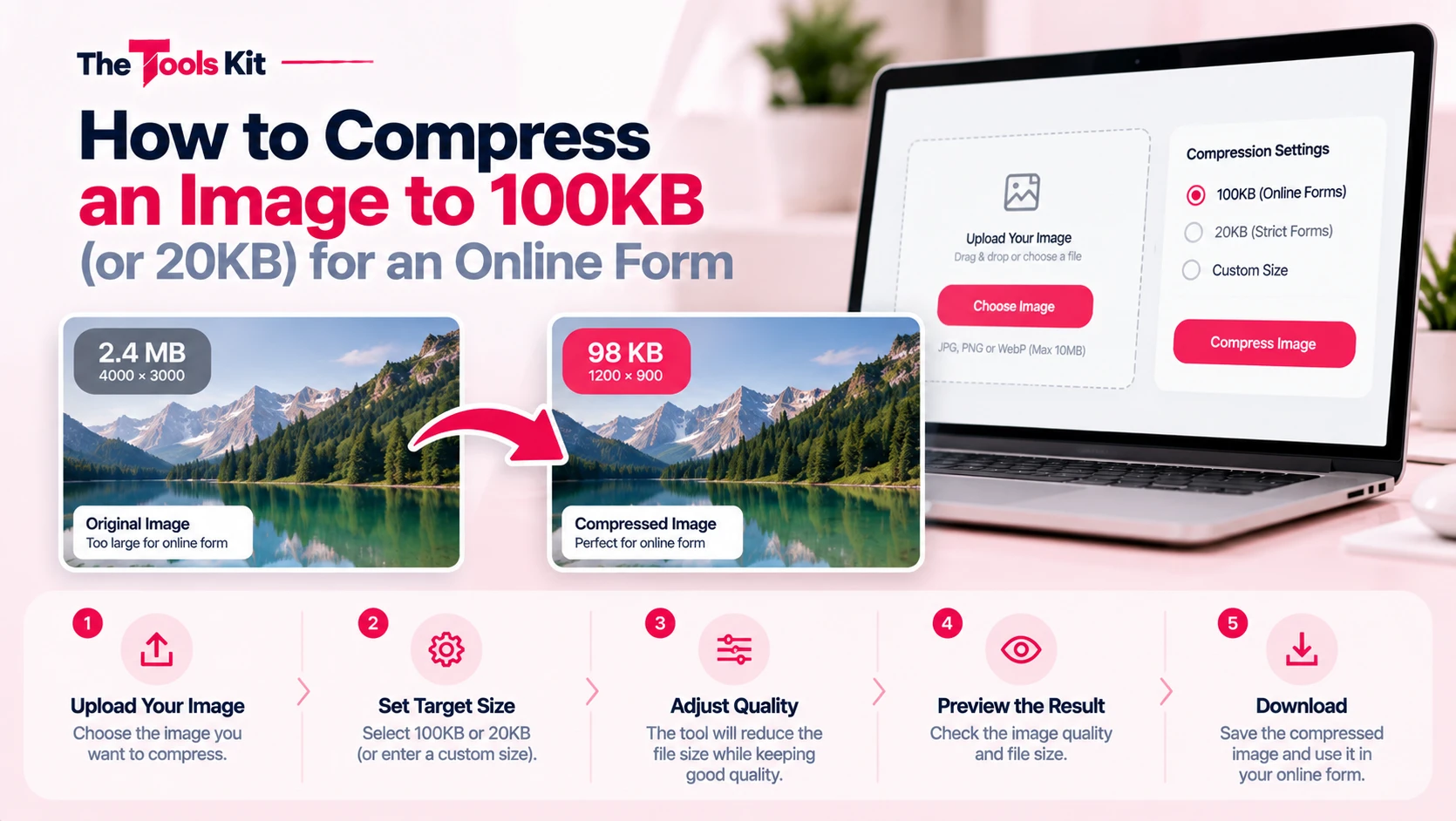
- Resize before compressing: a 4000-pixel photo left at full dimensions forces compression to do all the work and produces a blurry, blocky result.
- To reach 100KB, resize the longest edge to 800 to 1200 pixels, then compress at 80 percent quality, stepping down to 70 or 60 if needed.
- Below about 50 percent JPEG quality, artifacts become obvious on faces and text, so a 20KB target requires shrinking to 400 to 600 pixels first.
- A PNG photograph can be five to ten times larger than the same image as JPEG, so convert to JPG before compressing.
Application portals, exam boards, and job sites routinely cap photo uploads at 100KB, and some still ask for 20KB. If your phone takes 4MB pictures, that gap looks impossible. It is not, but hitting the target without destroying the image depends on using two different levers in the right order.
The two levers, and why order matters
File size is driven by two independent things:
- Dimensions, the pixel width and height.
- Compression quality, how aggressively JPEG discards detail.
Most people reach straight for quality, drag it to 20 percent, and end up with a blurry, blocky mess that a reviewer rejects. That happens because they left a 4000 pixel wide photo at 4000 pixels wide and asked compression to do all the work.
Resize first, compress second. A photo that only needs to display at 600 pixels wide does not need 4000 pixels of data. Cutting the dimensions removes bulk without touching visible quality at the size it will actually be viewed, and it leaves compression far less work to do.
Hitting 100KB
For a typical passport style photo or document scan:
- Resize the longest edge to somewhere between 800 and 1200 pixels. Use the Image Resizer, which keeps the aspect ratio locked so nothing stretches.
- Run it through the Image Compressor at 80 percent quality. The tool shows the exact percent saved and the resulting size before you download, so you can see whether you are under the limit.
- If you are still over, step the quality down to 70, then 60. Below about 50 percent, JPEG artifacts start becoming obvious on faces and text.
Most photos land under 100KB by the end of step 2.
Hitting 20KB
20KB is genuinely tight, and you will have to accept visible quality loss. Push the longest edge down to 400 to 600 pixels first, then compress. If the image is a document scan rather than a photo, check whether the portal accepts PDF instead, since a text PDF at that size will be far more legible than a 20KB JPEG of the same page.
Why your file is bigger than you expect
Three things inflate photos beyond what the picture itself needs:
- Modern phone sensors. A 12 megapixel photo is roughly 4000 by 3000 pixels, far more than any web form displays.
- Embedded metadata. EXIF data, thumbnails, and colour profiles add weight. Stripping them with the EXIF Remover trims the file and removes the GPS coordinates most phones quietly attach.
- PNG for photographs. PNG is lossless, which is excellent for logos and screenshots and terrible for photos. A PNG photo can be five to ten times larger than the same image as JPEG. Convert it with PNG to JPG before compressing.
A quick checklist
- Resize before you compress.
- Start at 80 percent quality and step down only if you need to.
- Use JPEG for photographs, not PNG.
- Strip metadata if you are close to the limit.
- Check the portal's exact wording. Some limits are on dimensions as well as file size.
The bottom line
An upload limit is not a quality ceiling, it is a budget. Spend it on the pixels that will actually be seen by resizing first, and let compression handle the remainder. That is the difference between a 100KB photo that looks fine and one that looks like it was faxed.
Frequently asked questions
Resize the longest edge to 800 to 1200 pixels first, then compress at 80 percent quality. The Image Compressor shows the resulting file size before you download, so you can step the quality down to 70 or 60 if you are still over the limit.
A 12 megapixel phone photo is roughly 4000 by 3000 pixels, far more resolution than any web form displays. Embedded EXIF metadata and colour profiles add more weight on top of that.
Resize first. Cutting dimensions removes bulk without affecting how the image looks at the size it will actually be viewed, which leaves compression much less work to do and avoids the blocky artifacts you get from over compressing a full resolution photo.
It is achievable but you will see quality loss. Reduce the longest edge to 400 to 600 pixels before compressing. If the image is a document scan, check whether the portal accepts a PDF instead, which will be far more legible at that size.
Not always, and it depends on the tool. If you specifically want the GPS coordinates and camera details gone, use a dedicated EXIF Remover rather than assuming compression handled it.