
Key takeaways
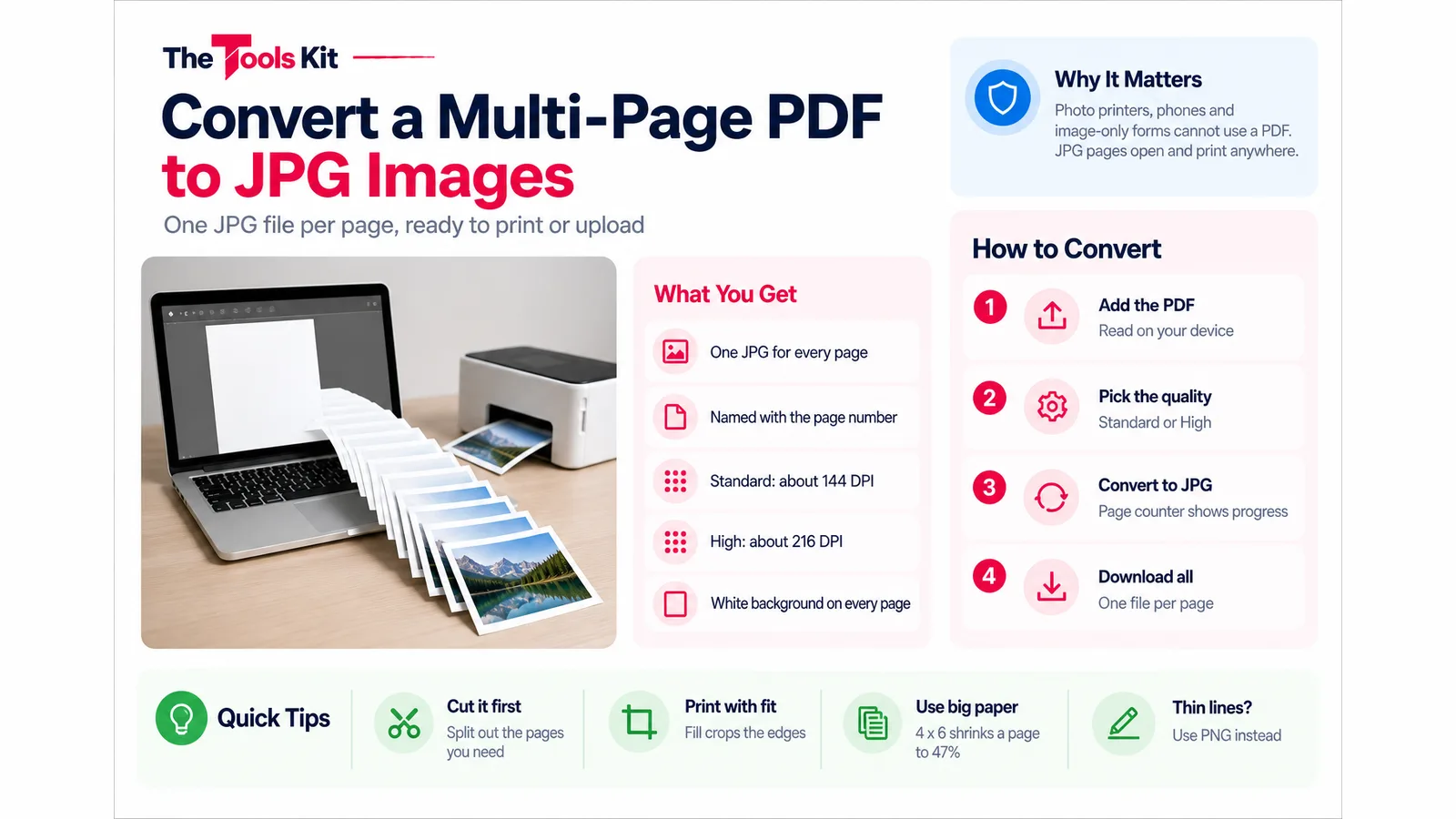
- A PDF to JPG converter that renders every page turns a 20-page PDF into 20 separate JPG files, each named with its page number.
- Standard quality draws pages at about 144 DPI and High at about 216 DPI; choose High for full-size printing, small print or cropping.
- On 4 x 6 inch photo paper a Letter page prints at about 47 percent of its size, so use the largest paper your printer accepts.
- Cut long PDFs down to the pages you need before converting, and use PNG instead of JPG for sharp diagrams or thin lines.
To turn a multi-page PDF into JPG images, open it in a PDF to JPG converter that renders every page, pick a resolution, and save the results. Our PDF to JPG converter does this in your browser: a 20-page reading becomes 20 separate JPG files, named after the PDF with the page number added, ready for a photo printer, a phone gallery or an upload form that only takes images.
This guide covers what happens to each page, which resolution to choose, how to handle long documents, and what to expect when the JPGs come out of a printer that only prints photos.
Why you would want a PDF as JPG files
A PDF keeps pages together in one file. Some devices and sites cannot use that file at all. The common cases:
- Photo-only printers. Many compact and photo printers print from a phone app, a memory card or a USB stick, and accept image files but not documents. A course reading or a form saved as a PDF has to become images first.
- Image-only upload fields. Application portals and support forms often accept JPG or PNG for a scanned certificate or ID and reject PDF.
- Phones and chat apps. A JPG opens in any gallery and sends like a photo, without the recipient needing a PDF viewer.
- Slides and posts. One page of a brochure or one slide of an exported deck can be posted as a normal picture.
If you only need a few pages, you do not have to convert the whole file. Pull out the pages you want first with Split PDF, then convert that shorter file. Our guide on how to split a PDF and extract specific pages walks through the page-range syntax.

How the conversion works, page by page
- Add the PDF. Drop it on the upload area or tap to browse. The file is read on your device; it is not uploaded.
- Choose the image quality. Standard draws each page at about 144 DPI. High draws it at about 216 DPI, which gives more pixels for printing or zooming.
- Press Convert to JPG. A counter shows which page is being drawn, for example "Converting page 7 of 20".
- Save the files. Each page has its own Download button under its preview, or press Download all to save every page. Download all sends one file per page rather than a ZIP, so your browser may ask once whether to allow the site to download multiple files.
Every page is drawn on a solid white background, because JPG cannot store transparency, and saved at a fixed 92 percent JPEG quality. A password-protected PDF will not convert; the tool shows a message asking you to remove the password first. If you can open the file, our guide to removing a password from a PDF you can open covers that step.
Standard or High: what each gives you
The quality menu changes resolution, not compression. These are the pixel sizes the converter produces for the two common page sizes:
| Page size | Standard (about 144 DPI) | High (about 216 DPI) |
|---|---|---|
| US Letter (8.5 x 11 in) | 1224 x 1584 px | 1836 x 2376 px |
| A4 (210 x 297 mm) | 1191 x 1684 px | 1786 x 2526 px |
Standard is enough for reading on a phone or laptop and keeps files small for email and forms. Choose High when you plan to print at full page size, when the document has small print or footnotes, or when you want to crop out a signature or chart later.
Printing the pages on a photo printer
A JPG of a document page prints like any photo, but the paper size decides how readable it is. A Letter page is taller and narrower than a 4 x 6 inch photo, so to fit the whole page on 4 x 6 paper the printer has to shrink it to about 47 percent of its original size (4 inches of paper width divided by 8.5 inches of page width). Text set at 12 point prints at roughly 5.6 point, which is small print. On 5 x 7 paper the page prints at about 59 percent, so 12-point text comes out near 7 point.
Some practical points:
- Use the largest paper the printer takes. If it accepts Letter or A4 photo paper, the page prints at full size and reads like a normal printout.
- Choose "fit" rather than "fill". Fill crops the edges of the page to cover the paper, which can cut off the first and last lines. Fit keeps the whole page with white borders.
- Pick High for small paper. When a Letter page is squeezed onto 4 inches of width, Standard already gives about 306 pixels per inch across the paper, so High mainly helps when you print larger or zoom in.
- Check the page count before you print. Photo paper costs more than plain paper, and a 30-page reading is 30 sheets.
Long documents and file size
There is no page picker inside the converter: it works through the entire file. For a long manual or textbook chapter, cut it down first with Delete PDF Pages or Split PDF, then convert only what you need. If an upload form has a size limit, run the JPGs through the image compressor afterwards. Our guide to compressing an image to 100KB explains how to hit an exact target.
When JPG is the wrong choice
JPG is lossy. It is fine for scans, photos and most text at these resolutions, but sharp diagrams, line drawings and screenshots with thin lines can show faint halos. For those, PDF to PNG keeps edges crisp at the cost of larger files. If you only need a smaller attachment and not images, keep it as a PDF and compress it instead. And if you need to go the other way later, JPG to PDF puts the images back into one document.
Frequently asked questions
Open the PDF in a converter that renders all pages, such as The Tools Kit PDF to JPG tool, choose Standard or High quality and press Convert to JPG. Each page becomes its own JPG named after the PDF with the page number added, and Download all saves every page.
Yes. Convert the PDF pages to JPG images first, then print them from the printer's app, card or USB stick like any photo. Use the largest paper the printer takes and choose fit rather than fill so the edges of each page are not cropped.
Standard, about 144 DPI, is enough for screens, email and most forms and keeps files small. High, about 216 DPI, gives more pixels for full-size printing, small print or cropping. For a US Letter page that means 1224 x 1584 pixels or 1836 x 2376 pixels.
The converter saves one JPG per page instead of packing them into a ZIP file, so the browser sees several downloads from one site. Allow it once and every page is saved to your downloads folder with its page number in the file name.