
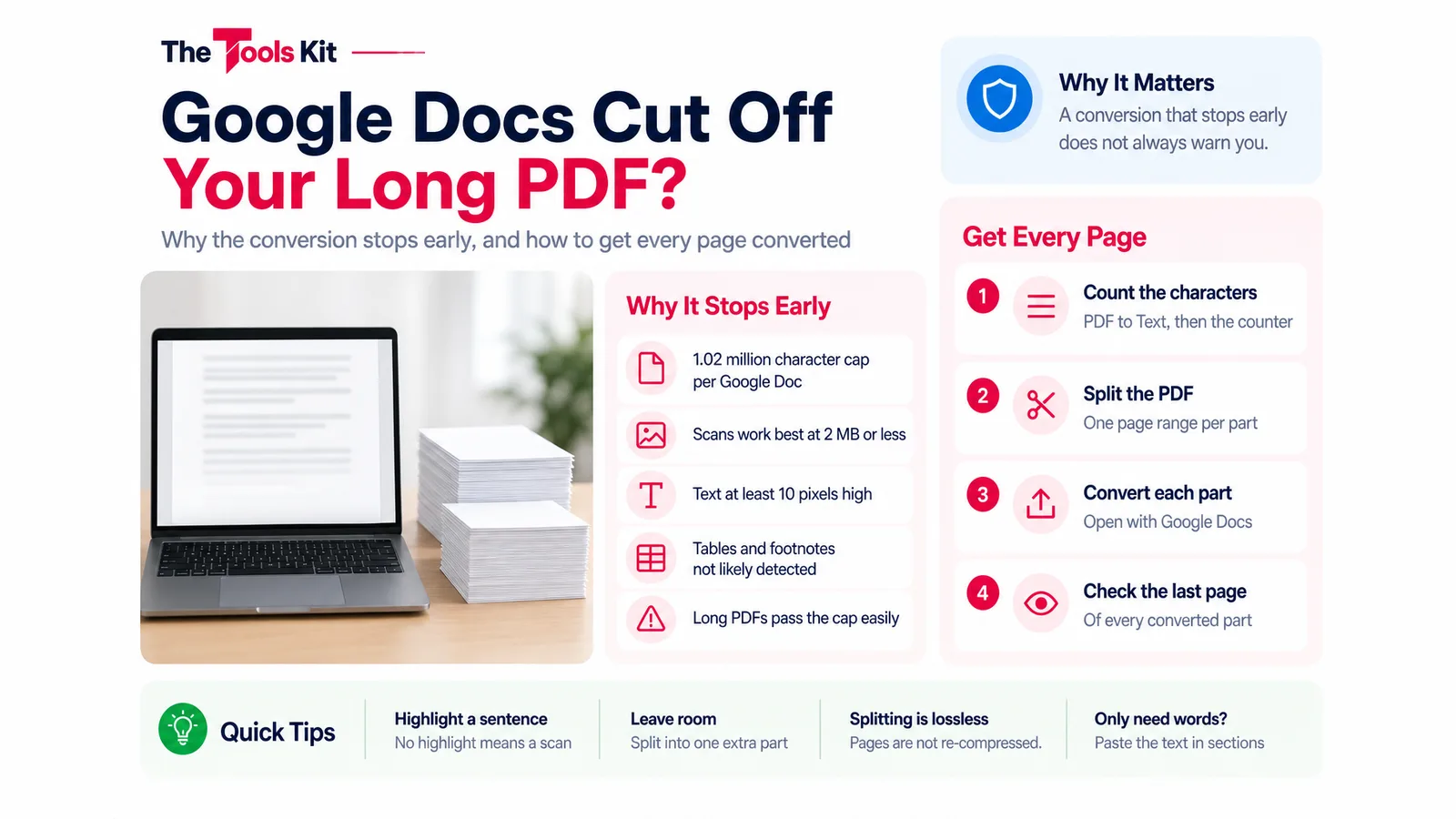
Key takeaways
- A Google Doc can hold at most 1.02 million characters, so a long PDF that stops converting at a clean page break has usually hit that cap.
- Google says files for text recognition should be 2 MB or smaller, so large scanned PDFs often convert partially or come back with garbled words.
- Splitting the PDF into page ranges and converting each part keeps every page, and splitting does not re-compress or lower the quality of pages.
- When only the words matter, extracting the text and pasting it into Google Docs in sections avoids the converter, at the cost of formatting.
When Google Docs converts a long PDF and stops partway, the document has usually hit one of Google's own limits, not a fault in your file. A Google Doc can hold at most 1.02 million characters, and Drive's text recognition works best on files of 2 MB or less. The fix is to split the PDF into parts that fit those limits and convert each part, or to pull the text out yourself and paste it in sections.
This guide explains which limit you are likely hitting, how to check, and three ways to get every page into an editable document.
Why the conversion stops early
Google Drive turns a PDF into a Google Doc when you right-click it and choose Open with Google Docs. Two published limits decide how much of the file survives that trip.
- The 1.02 million character cap. Google Drive Help lists the maximum size of a Google Docs document as 1.02 million characters. A long textbook, a legal bundle or a thesis with appendices can pass that easily, and the text after the cap does not come through.
- The 2 MB guidance for text recognition. For converting PDFs and photos to text, Google's help page says the file should be 2 MB or smaller, with text at least 10 pixels high and pages the right way up. Large scanned PDFs often break this, and the result can be partial or garbled.
There is a third, quieter loss. Google says bold, italics, font size and line breaks are likely to be kept, but lists, tables, columns, footnotes and endnotes are not likely to be detected. So even a conversion that reaches the last page may have lost structure along the way.
Which limit applies to you depends on the file. A large text-based PDF that stops at a clean page boundary usually points to the character cap. A scan that comes back with missing or jumbled words usually points to the recognition guidance.

Check which limit you are hitting
Two quick checks tell you what you are dealing with.
- Try to highlight a sentence in the PDF. If the text highlights, the PDF has a real text layer. If nothing highlights, it is a scan and Google has to read it with text recognition.
- Count the characters. Open the PDF in our PDF to Text tool, which pulls out the text layer in your browser, then paste the result into the character counter. If the total is above 1,020,000, a single Google Doc cannot hold it. Divide the total by 1,020,000 and round up to get the smallest number of parts you need. For example, 2.6 million characters needs at least three parts.
If the PDF to Text tool finds no text, you have a scanned PDF, and the character count will have to wait until the pages are recognised. Our guide on scanned PDFs and OCR explains the difference in more detail.
Fix 1: Split the PDF and convert each part
This is the fix that keeps the most formatting from Google's own converter.
- Open the Split PDF tool and choose your file.
- Enter the first page range, for example 1-150, and press Split PDF. The pages are copied into a new file, which downloads with -split added to the name.
- Run it again for the next range, for example 151-300, and so on until every page is in a part. The tool makes one file per run and leaves your original PDF unchanged.
- Upload each part to Drive and open it with Google Docs.
- Check the last page of each converted part against the PDF before you move on.
Splitting copies the original pages without re-compressing them, so it does not lower image quality. Pick ranges with some room to spare: if your character count says three parts, splitting into four keeps each part well under the cap. For scans, aim for parts of 2 MB or less; if one part is still too big, a PDF compressor can bring it down. The steps for picking ranges are covered in our guide to splitting a PDF and extracting pages.
You end up with several Google Docs. If you only need to read and annotate, that is often fine. If you need one document, the next fix is easier.
Fix 2: Extract the text and paste it in sections
For a text-based PDF where you mainly need the words, skip Google's converter.
- Open the PDF in PDF to Text. It reads every page in your browser, so nothing is uploaded.
- Press Download .txt, or Copy Text.
- Paste the text into Google Docs in sections, keeping each document under 1.02 million characters.
This gives you all the words in reading order, with a blank line between pages. It does not keep headings, bold, tables or images, so plan to reformat. It also cannot help with a scan, because a scan has no text layer to extract.
Fix 3: Convert to Word instead
If you want a single editable file and do not need it to live in Google Docs, convert the PDF to a .docx instead. Our PDF to Word converter handles text-based PDFs up to 3 MB with its standard Convert button. For a larger file or a scan, it offers Convert with OCR, which reads the pages inside your browser, in English, and writes the text and detected table rows into a .docx. Word, LibreOffice and Pages open the result. You can still upload the .docx to Drive later, and the same 1.02 million character cap applies once it becomes a Google Doc.
Which fix to choose
| Your PDF | Best fix |
|---|---|
| Long, text-based, formatting matters | Split into parts, convert each in Google Docs |
| Long, text-based, only the words matter | PDF to Text, paste in sections |
| Scanned, over 2 MB | Split or compress to parts under 2 MB, then convert |
| You need one editable file, not a Google Doc | PDF to Word |
Whichever route you take, check the last few pages of each part against the original before you delete anything. A conversion that stops early does not always warn you.
Sources
Frequently asked questions
A Google Doc can hold at most 1.02 million characters, so a long text PDF stops converting once it passes that cap. For scans, Google says the file should be 2 MB or smaller, and larger scans can come back partial or garbled.
Split it into parts with a page range per part, upload each part to Drive and open it with Google Docs. Count the characters first and pick enough parts that each one stays well under 1.02 million characters.
No. The Split PDF tool copies the original pages into a new file without re-compressing them, so text and images look the same. Your original PDF is left unchanged, and each run makes one new file from the range you enter.
Google's help page says bold, italics, font size and line breaks are likely to be kept, but lists, tables, columns, footnotes and endnotes are not likely to be detected. Check those parts against the PDF and rebuild them by hand.