
Key takeaways
- Line-by-line comparison flags any line that is not an exact character match, so an edited line appears twice: once as removed and once as added.
- A paragraph without line breaks counts as one line; put each sentence on its own line in both versions to find the changed sentence quickly.
- Capital letters, trailing spaces and curly quotes all count as differences; clean both texts the same way before comparing if they do not matter.
- For PDFs extract the text first, and for minified JSON format both files first, because a single-line file always shows as fully changed.
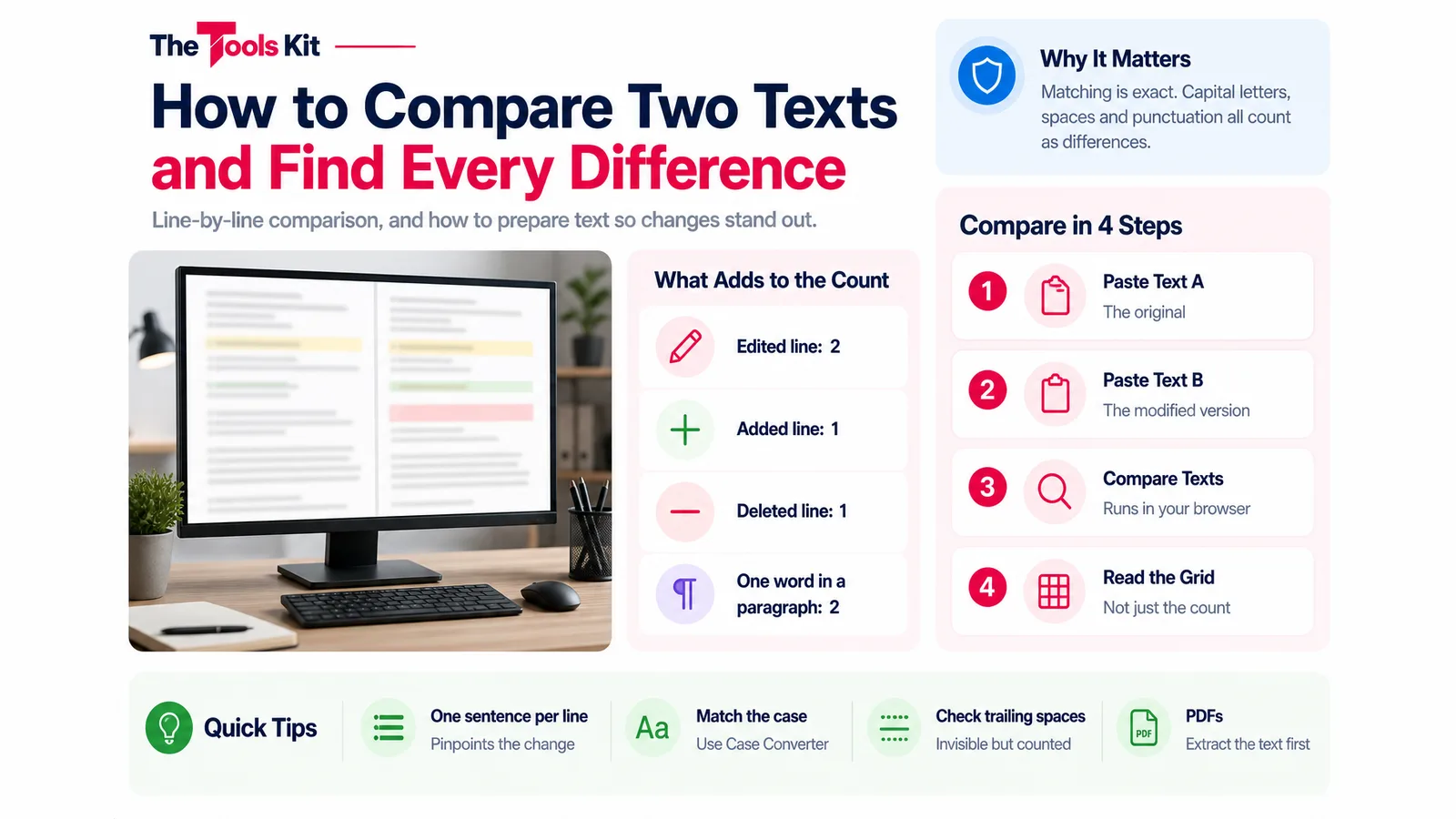
To compare two texts and find the differences, paste the original into one box and the edited version into the other, then run a line-by-line comparison: every line that does not match exactly is flagged side by side. The Text Compare tool on thetoolskit.co does this in your browser, so nothing you paste is uploaded. It lines the two versions up so that one added or removed line does not mark everything after it as changed. The catch is that it compares whole lines, so how you split your text into lines decides how useful the result is. This guide shows how to prepare the text so the differences you care about stand out.
How the comparison works
- Paste the earlier version into Text A (Original) and the newer one into Text B (Modified).
- Click Compare Texts. The button stays disabled until both boxes have text.
- Read the result: a count of line differences, then a grid with a line number, the Text A line and the Text B line. Changed rows are highlighted.
Matching is exact. A line counts as the same only if every character matches, including capital letters, punctuation and spaces. The tool finds the longest run of lines the two versions share and keeps those aligned, then marks what is left over on each side.
Two consequences are worth knowing before you read the count:
- An edited line shows up as two highlighted rows: the old line with an empty right side, then the new line with an empty left side. One edited line therefore adds 2 to the count.
- An added line or a deleted line adds 1.
So "6 line differences found" could be three edited lines, or six lines added, or a mix. Read the grid, not just the number.

Why a whole paragraph lights up
A paragraph with no line breaks inside it is one line, however long it looks on screen. Change one word in it and the whole paragraph is flagged, once as removed and once as added, and you are left hunting for the word yourself.
The fix is to give each sentence its own line in both versions before comparing. In most editors you can find and replace ". " (a full stop and a space) with a full stop followed by a line break. Do the same to both texts, paste them in, and the grid now points at the sentence that changed instead of the paragraph.
| What you are comparing | Prepare it like this |
|---|---|
| Essays, articles, contracts | One sentence per line in both versions |
| Lists, addresses, CSV rows | Already one item per line; paste as is |
| Code and config files | Paste as is; lines are the natural unit |
| Minified JSON | Format both first so each key sits on its own line |
| Two PDFs | Extract the text from each, then paste |
Changes you might not want flagged
Because matching is exact, some differences are real to the tool but not to you.
- Capital letters. "Total" and "total" are different lines. If case does not matter, put both versions through the Case Converter in the same mode first.
- Trailing spaces. A space at the end of a line is invisible but makes the line differ. If two highlighted rows look identical, this is the likely cause.
- Curly versus straight quotes. Text copied from a word processor often has curly quotes and apostrophes; the same text typed in a plain editor has straight ones. Every line containing one will be flagged.
- Blank lines. An extra empty line counts as an added line, and the lines after it stay aligned.
The tool has no ignore-case or ignore-whitespace switch, so clean both texts the same way before pasting.
Comparing files, PDFs and code
The boxes take pasted text only; there is no file upload. To compare two Word documents, two text files or two emails, open each one, copy all the text, and paste it into its box. Fonts, images and layout are not compared, only the words.
For two PDFs, run each through PDF to Text first and paste the output. That works when the PDF has selectable text; a scanned PDF is an image, and PDF to Text will tell you it found no text. Our guide to converting a PDF without losing text explains the difference.
For JSON, format both versions in the JSON Formatter before comparing. A minified file is a single line, so any change marks the entire file as different. If the formatter rejects one version, our guide to the five errors that break JSON will usually find the cause. Code in general compares well as it is, since each statement is already on its own line.
A quick check that the result is complete
Before you trust "Texts are identical" on a long document, make sure both boxes really hold the whole text: scroll to the bottom of each, or paste each into the Word Counter and check the counts match the source. A partial copy is the most common reason a comparison misses something, and the tool can only compare what is in the boxes.
Frequently asked questions
Paste the original into Text A and the edited version into Text B on the Text Compare tool, then click Compare Texts. Every line that is not an exact match is highlighted side by side, and nothing you paste is uploaded.
The comparison works line by line, and a paragraph without line breaks is one line. Put each sentence on its own line in both versions before comparing, and the highlight narrows to the sentence that changed.
Not with a switch; matching is exact. Convert both versions to the same case with a case converter, and remove trailing spaces, before you paste them in. Then only real wording changes are flagged.
Extract the text from each PDF with a PDF to Text tool, then paste the two outputs into the comparison boxes. This works for PDFs with selectable text; a scanned PDF needs OCR first.