
Key takeaways
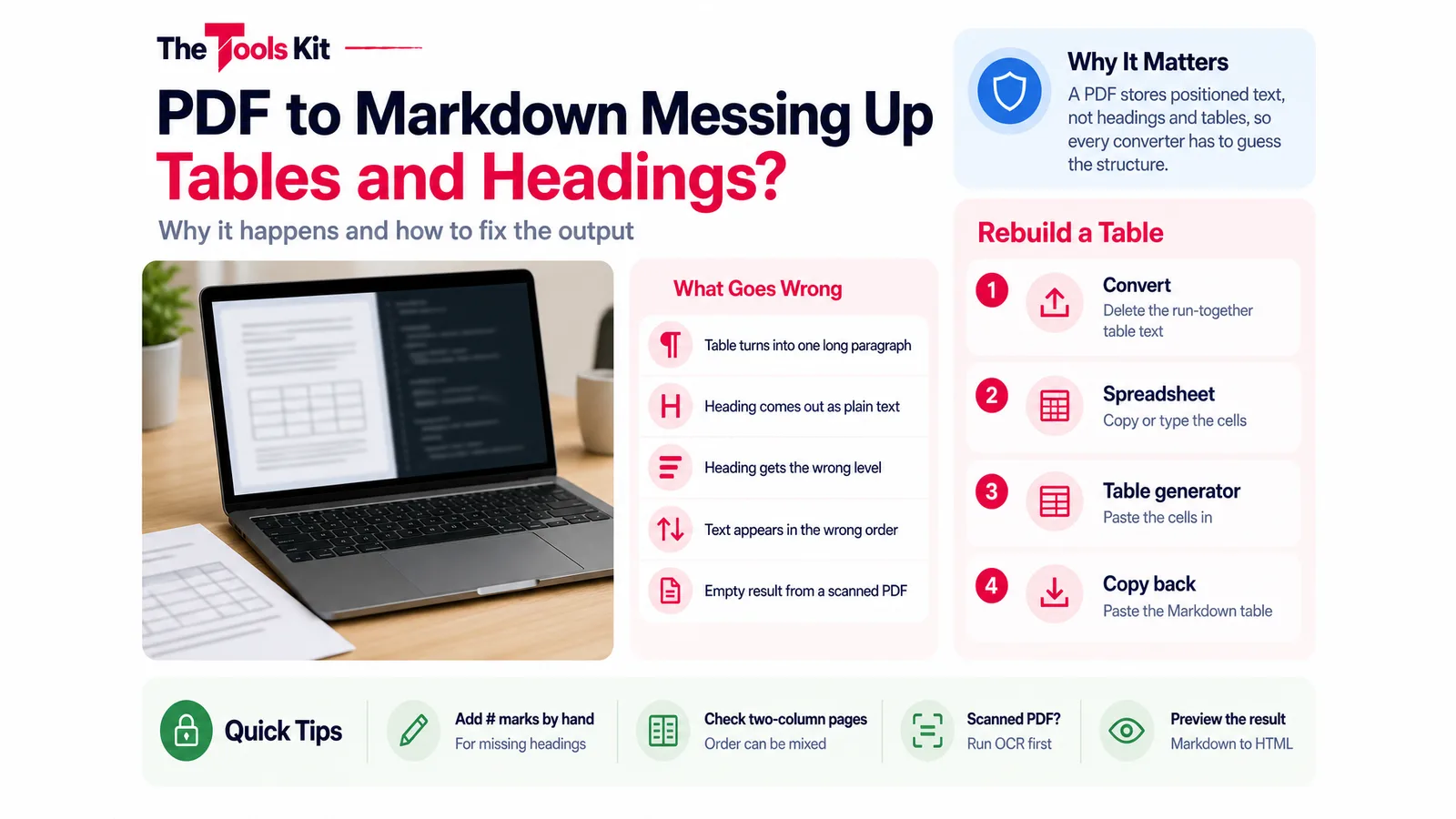
- A PDF stores positioned text rather than headings and tables, so every PDF to Markdown converter has to guess the structure.
- Our converter makes headings from font size alone, at 1.15, 1.4 and 1.8 times the body size, and does not read bold or links.
- Rebuild tables by pasting the cells from a spreadsheet into a Markdown table generator instead of fixing the run-together text.
- An empty result means a scanned PDF with no text layer, so it needs OCR before any Markdown conversion can work.
PDF to Markdown output goes wrong because a PDF does not store a document's structure. It stores pieces of text and where to draw them on the page. A converter has to guess which lines are headings, which belong together as paragraphs and which form a table, and tables are where the guessing fails most often. The practical fix is to convert the text, then rebuild each table with a Markdown table generator and correct the headings by hand. For most documents that takes minutes, not hours.
Here is what each problem means, why it happens, and how to clean up the result.
Why a PDF has no structure to convert
A Word document knows that a line is a heading and that a grid is a table. When it is exported to PDF, that knowledge is usually flattened into drawing instructions: put these characters at this position, in this font, at this size. Some PDFs also carry tags that describe headings and tables, but many carry no tags at all, and plenty of converters, including ours, do not read them.
So a converter works from what is left: the text, its position on the page and its font size. Everything else is inference.
What goes wrong, and why
| Problem | Why it happens |
|---|---|
| A table turns into one long paragraph | The PDF has no grid, so each row reads as an ordinary line of text |
| A heading comes out as plain text | It was bold but the same size as the body text, and size is the only clue |
| A heading gets the wrong level | The level is guessed from how much larger the font is |
| Text appears in the wrong order | Order follows how the text was stored, which can differ from how it looks with columns or sidebars |
| The result is empty | The PDF is a scan with no text layer |
| Links become plain text | Link areas are stored separately from the text and are not read |

How our converter makes its guesses
Knowing the rules makes the output easier to fix. Our PDF to Markdown converter runs in your browser and works like this:
- Lines are built from text that sits at the same height on the page.
- Headings come from font size compared with the typical body text size across the whole document. A line at least 1.15 times the body size becomes a level 3 heading, 1.4 times a level 2, and 1.8 times a level 1.
- Lists are only made from lines that already start with a bullet character or a number such as "1." or "1)".
- Paragraphs are made by joining every other line in a run, which is why a table's rows end up as one long paragraph.
- Pages are separated by a horizontal rule (---).
- Bold, italic and links are not read at all.
Rebuild a table in four steps
- Convert and mark the spot. Run the PDF through the converter, find the paragraph where the table's cells ran together, and delete it. Leave a note such as TABLE HERE so you know where it goes back.
- Get the cells into a spreadsheet. For a short table, typing it into a spreadsheet is often fastest. For a longer one, copy the table from your PDF viewer and fix the columns in the sheet. If the table is in a scanned PDF, our PDF to Word converter has OCR that rebuilds detected rows as real Word tables, which you can then copy into a sheet.
- Paste into the table generator. Select the cells in the spreadsheet, copy, and paste them into the Markdown table generator. It detects the tab separators that spreadsheets use, treats the first row as the header, lets you set left, center or right alignment per column, and escapes any pipe character inside a cell so it does not break the table.
- Copy it back. Copy the Markdown and paste it over your TABLE HERE note.
In Markdown, a table is a header row, a divider row of hyphens, and the data rows, with pipes between cells. Colons in the divider row set the alignment.
Fix headings and order
- Missing headings. Read the output next to the PDF and add # marks to lines that should be headings: one # for the title, ## for main sections, ### for subsections.
- Wrong levels. Change the number of # marks.
- Wrong order. Two-column pages, sidebars and footers are the usual cause. Compare each page with the original and move the blocks that landed in the wrong place.
To see the result rendered, paste it into our Markdown to HTML converter and check the headings and tables there.
When another route is better
If you only need the words, PDF to Text is simpler. If the result came back empty, the PDF is a scan and needs OCR first; our guide to scanned PDF to editable text explains how that works. And if you plan to edit the document in Word rather than in Markdown, PDF to Word vs inserting a PDF into Word helps you pick the right path.
Sources
Frequently asked questions
Most PDFs do not store a table as a grid. They store each piece of text and its position, so a converter sees the rows as ordinary lines. In our converter those lines are joined into one paragraph, and the table has to be rebuilt.
Get the cells into a spreadsheet by copying them from the PDF or typing a short table, then copy the cells and paste them into a Markdown table generator. It turns tab-separated cells into a table with a header row.
The converter judges headings by font size. A heading set in bold at the same size as the body text gives it nothing to detect, so it comes out as a normal line. Add the # marks by hand.
The order follows how the text was stored inside the PDF, which can differ from how the page looks. Two-column layouts, sidebars and footers are the usual cause. Compare with the original and move the blocks.